Screen & Webcam Recording: Why Browser-Native APIs are Safest
Record your screen or webcam securely without cloud uploads. Learn how native browser APIs keep your recordings private and high-quality.

Screen & Webcam Recording: Why Browser-Native APIs are Safest
Let’s talk about a daily ritual for most remote workers and developers: the screen recording.
Whether you are capturing a weird UI bug, walking a client through a new dashboard, or recording a quick webcam presentation, video is the easiest way to communicate context. But there is a massive security blind spot in how we typically record our screens.
For years, the default move has been to install a third-party browser extension or desktop app. You hit record, capture your internal company data, and hit stop. Then, you sit there watching a progress bar as the app uploads your video to a remote cloud server so it can generate a shareable link.
We at MLOGICTECH looked at this workflow and realized it is fundamentally broken. Why are we sending gigabytes of sensitive video across the internet just to record something happening right in front of us?
You don't need a cloud server to record your screen. You don't even need a desktop app. Modern web browsers possess an incredibly powerful, native engine for capturing and encoding media entirely offline.
Here is why browser-native APIs are the safest way to record your screen, how the underlying technology actually functions, and the headaches we survived to make it work seamlessly in the browser.
The Privacy Nightmare of Cloud Recorders
When you use a cloud-based screen recorder, you are actively streaming your screen contents to a server you don't control.
Think about what is visible on your screen during a typical workday. Proprietary source code in your IDE. Customer names and emails in your CRM. Private Slack messages popping up in the corner. Financial projections in a spreadsheet.
When you push a recording to a third-party server, you are trusting their infrastructure. You are hoping their AWS buckets are properly configured. You are blindly trusting their "Data Deletion Policy." If that platform suffers a data breach, your internal company walk-throughs and bug reports are suddenly out in the wild.

Beyond the privacy risks, there is the raw inefficiency of it all. Video files are massive. If you are on a slow hotel Wi-Fi connection, uploading a 10-minute 4K screen recording can take longer than the recording itself. You are burning bandwidth for no good reason.
Enter the MediaRecorder API
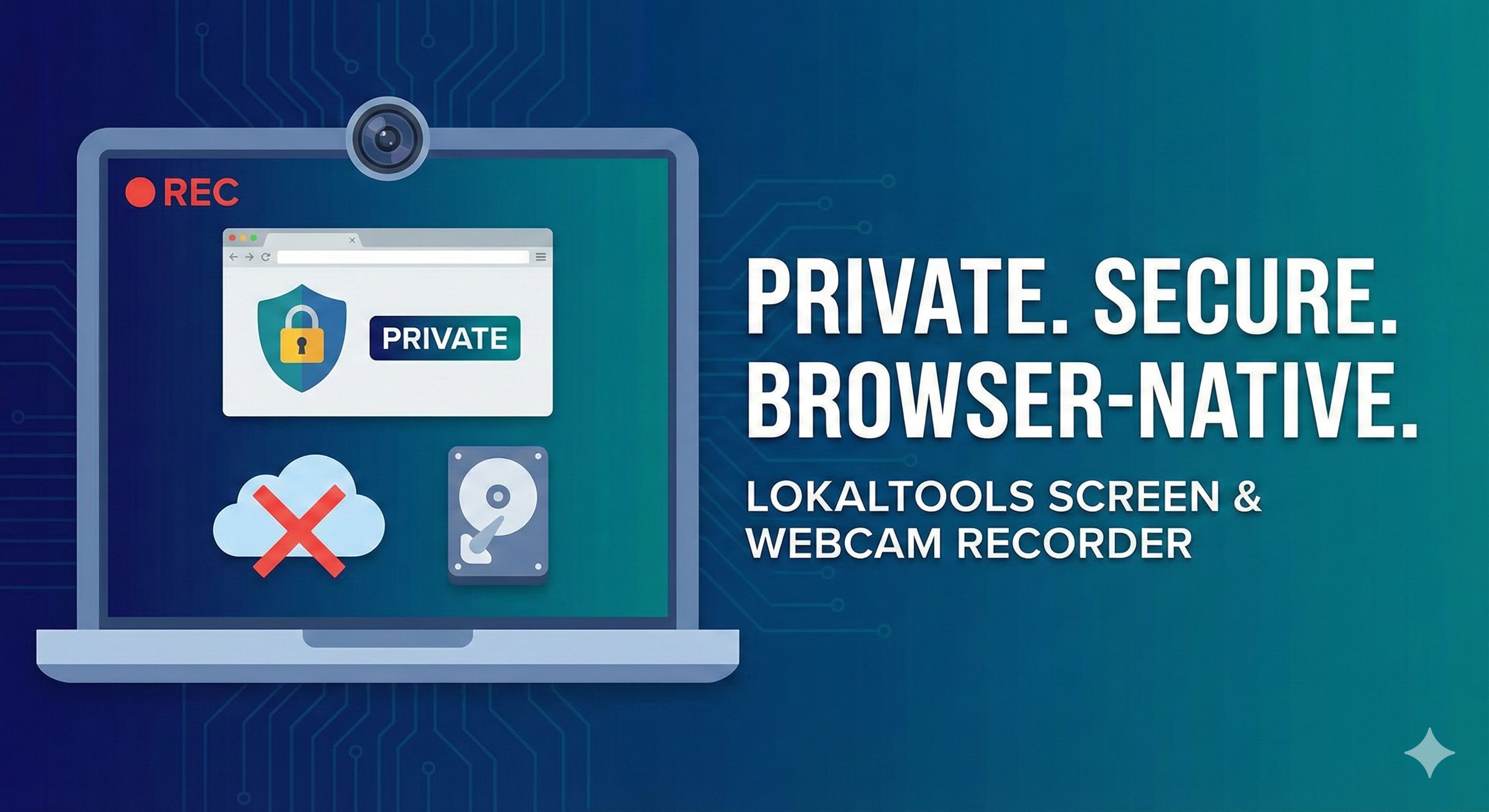
We built the LokalTools Screen & Webcam Recorder entirely around a different philosophy: your data should never leave your device. To do this, we leveraged the browser's native MediaRecorder API.
Modern browsers like Chrome, Firefox, and Safari are essentially operating systems in their own right. They have deep, low-level access to your machine's hardware—provided you grant them explicit permission.
Here is the exact sequence of how a purely local web recorder captures your screen:
- The Handshake: We use the
navigator.mediaDevices.getDisplayMedia()API. This triggers a native browser prompt asking you which window, tab, or screen you want to share. This is a secure, browser-level permission dialogue that no website can bypass. - The Stream: Once you grant permission, the browser hands our JavaScript application a
MediaStreamobject. This is a raw, live feed of your screen's pixels and your microphone's audio. - The Local Encode: We pass this stream into the
MediaRecorderAPI. The browser's built-in media engine (often utilizing hardware acceleration from your GPU) takes those raw frames and encodes them into a compressed format like WebM or MP4 on the fly. - The Assembly: The API spits out encoded video data in chunks. We assemble these chunks locally and offer you a direct download.
Zero bytes are transmitted over the network. You could literally turn off your Wi-Fi the moment you load the LokalTools page, and the recorder would function flawlessly.
From the Developer's Desk: The RAM Bomb Gotcha
Building a native screen recorder sounds straightforward. You grab the stream, record it, and save the file. But when I first built the prototype for LokalTools, I ran headfirst into a catastrophic memory leak.
Here is the technical reality check: The standard way developers use the MediaRecorder API is by listening to an ondataavailable event. Every few seconds, the API hands you a "Blob" (a chunk of binary data) containing the latest encoded video. The standard tutorials tell you to just push these Blobs into a JavaScript array, and when the user hits stop, you stitch the array together into a final video file.
This works perfectly for a quick 60-second bug report.
But what happens when a user tries to record a two-hour webinar?
As the recording continues, that JavaScript array keeps growing. 100MB. 500MB. 2GB. Browsers place strict memory limits on individual tabs to prevent rogue websites from crashing your entire computer. When our prototype hit that memory ceiling, Chrome didn't just warn the user; it instantly killed the tab with an "Out of Memory" error. The user lost their entire recording. It was a terrible experience.
The Fix: We had to completely abandon the array-hoarding method. Instead, we implemented a streaming architecture using the File System Access API.
Now, when you start a recording on LokalTools, we immediately prompt you to choose where you want to save the file on your hard drive. As the MediaRecorder generates video chunks, we pipe those Blobs directly through a FileSystemWritableFileStream to your local disk.
The data bypasses the browser's RAM entirely. You can record massive, multi-hour 4K sessions, and the browser tab will never consume more than a few megabytes of memory. If your battery dies mid-recording, the video file up to that exact second is already safely sitting on your hard drive.
The Trade-offs: When the Cloud Actually Wins
I am a massive advocate for client-side processing, but we don't build tools in a vacuum. You need to know when a local architecture is the right choice, and when a traditional cloud architecture actually holds the advantage.
The single biggest trade-off of a local browser recorder is instant shareability.
With LokalTools, because we prioritize absolute privacy, we never see your file. That means when you hit stop, you get a physical video file on your desktop. You own it completely. But if you want a colleague to watch it, you are responsible for uploading it somewhere (like Google Drive, Dropbox, or YouTube).
For workflows where speed-of-sharing is the absolute highest priority—and the contents of the screen aren't sensitive—a cloud recorder is hard to beat. But for everything else, local is the way to go.
Try It Yourself
Stop waiting for uploads. Stop wondering where your screen recordings are being stored.
Head over to the Screen Recorder or Webcam Recorder right now. Turn off your Wi-Fi if you want to test it. Select your screen, record a quick clip, and watch as your browser encodes and saves a high-quality video directly to your machine—instantly, securely, and completely offline.