Audio Booster
Increase the volume of your audio files safely in your browser.
About Audio Booster
Give your quiet recordings a volume boost without distortion. Whether you have a faint voice memo or a low-volume music track, our audio booster uses digital gain processing to amplify the sound directly in your web browser.
How to Use
- Upload the audio file that needs a volume increase.
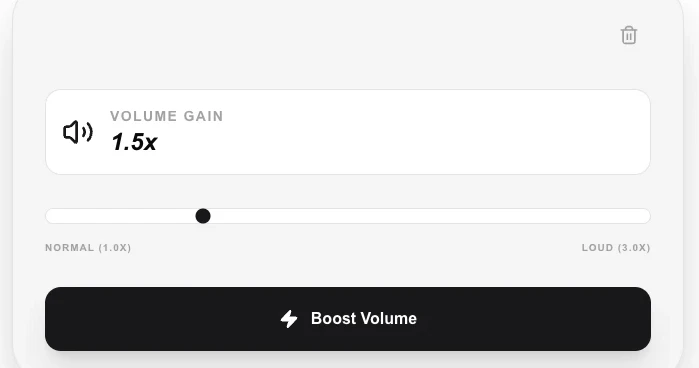
- Adjust the 'Volume Gain' slider (start with small increments to avoid clipping).
- Click 'Boost Volume' to process the audio track locally.
- Download the amplified file and check for clarity and safe volume levels.
Common Use Cases
- Fixing quiet voice recordings from meetings, lectures, or phone calls.
- Amplifying soft music tracks for better listening on speakers or headphones.
- Normalizing the volume of multiple audio clips for a consistent experience.
Technical Details
Applies a digital gain multiplier to the audio samples using the Web Audio API or FFmpeg.wasm. Operates entirely in the browser to ensure your audio files remain private.
Frequently Asked Questions
- What is 'clipping'?
- Clipping occurs when the volume is boosted beyond the digital maximum, leading to harsh distortion. Use moderate gain settings to avoid this.
- Does it work on videos?
- This specific tool is optimized for audio files. For video volume, you can use our upcoming video toolset or convert to audio first.
- How much can I boost the volume?
- You can typically increase gain up to 400% (4×). Boosting too high causes clipping distortion, so preview the result before downloading.
- Can I boost the volume of a video file?
- Audio Booster is designed for audio files (MP3, WAV, etc.). To boost a video's audio, first extract the audio track with the Audio Extractor tool, boost it here, then rejoin it with your video using a video editor.
- Why does my boosted audio sound distorted?
- Distortion (clipping) happens when the amplified waveform exceeds the maximum digital signal level. Try a lower boost percentage, or use the tool's normalize option if available to bring the loudest peak to 0 dBFS without distortion.
- What audio formats does the Audio Booster support?
- The Audio Booster accepts most common audio formats including MP3, WAV, AAC, OGG, FLAC, M4A, and OPUS, as well as audio tracks inside MP4, MOV, and WebM video files. Processing is done entirely in your browser using FFmpeg WebAssembly — no audio is uploaded to any server. The output is delivered as an MP3 or the original format depending on browser support. Large files may take longer to process depending on your device's CPU speed.
Local processing
Our local file, text and chart tools process content on your device using JavaScript, browser APIs and, where needed, WebAssembly. Our usage events do not include filenames, file contents, input text, chart values, raw errors, emails or license references. Network lookup tools (such as DNS, WHOIS, IP and speed tests) contact external services for their stated purpose. Loading the website, fonts, libraries and models also makes network requests. WebAssembly itself does not prevent network access.